How to Interview A Salesforce Admin

Interviewing in general can be pretty awkward, and when someone isn’t trained or practiced interviewing, it can leave a lot of questions. How do I test this person’s skills? How do I test their decision-making abilities? Will they be able to work with our design philosophy? Do they know what they’re doing?

The approach that I like to take is very simple, and straightforward questions. Things like “How do you make a field required, but only once an Opportunity reaches the Contracting stage?”

When I ask a question like this, I’m looking for 4 things:

  1. Can the interviewee answer the question?
  2. Can the interviewee describe other solutions? And can they describe the benefits and caveats to the solutions they have proposed.
  3. Can the interviewee describe the impact of those changes to the data in Salesforce?
  4. How do those changes impact a user’s workflow?

Can the interviewee answer the question?

The first criteria is pretty typical. It’s a simple question, so an admin with a rudimentary understanding of the system should be able to answer it. Using the example question, we can say with confidence that you would use a validation rule to require the field be entered when the Opportunity stage reaches contracting.

This takes us to part two…

Can the interviewee describe other solutions?

Can the interviewee describe other solutions and the benefits or caveats to these solutions? There’s almost always a few different ways to solve problems in Salesforce, and an interviewee’s ability to describe these different options goes a long way toward understanding whether they know the “by-the-book” answer, or whether they understand the platform well enough to work around business rules or an environment’s own obscurities.

By extension of this, we want the interviewee to be able to understand the pros and cons of the proposed solutions. A validation rule handles this job perfectly, but has its own usability quirks. In my other post, I likened Validation Rules to a hammer, and that they’re often the first mechanism people run to for controlling input in lieu of other solutions. There are other options available, including:

  • Using record types and page layouts to require input at different stages
  • If the field is a pick list, we can use field dependencies and the required field checkbox to require selection after the contracting stage
  • Apex can also be used for restricting/requiring input
  • Utilizing proper field types that match the expected input and then using formula fields when we need to convert those values

Each of these has its own caveats:

  • Record types is messy on the admin side and requires automation to convert between types
  • Field dependencies really only works on picklist types
  • Apex is much more complex and suffers from the same after-submission error messages that validation rules do
  • And proper field typing requires you to be aware of the requirements before the field is created, or else a data migration is required. It also requires extra fields for the formulas if needed.

They also have their own benefits:

  • With varying record types and page layouts you can change how information is presented and hide anything which is no longer relevant
  • Field dependencies communicate expectations to the user up-front, rather than waiting for them to submit and requiring them to correct the mistake
  • Apex can be infinitely more complex than the other solutions
  • Proper field typing also communicates expectations to users up-front

It’s less important to know all of the solutions than to be able to recognize that other solutions exist, and be able to justify why you chose the solution you did.

Can the interviewee describe the impact of those changes to the data in Salesforce?

When a new field or automation is added to Salesforce, a pivotal question is whether the change will be a running change or if it also needs to be implemented retroactively. Understanding that a new validation rule which requires that a Closed Date cannot be set 1 week in the future has down-stream consequences is important.

Perhaps this business rule is new. Maybe there are a number of Opportunities out there which would not pass this validation rule. What happens then? What happens when a marketing resource changes an unrelated field on the Opportunity? Do we add an IsChanged expression to our formula so they don’t have to make the correction for the Sales Manager? Do we do a data load to clear out any Close Dates which are too far in the future? Or do we notify Sales in advance to update their close dates? And what happens if it’s not a close date, but another field instead where closed Opportunities might not pass the criteria going forward? If we have to data load or batch process them in the future, we may get blocked by this failing validation rule.

It’s once again far less important that the interviewee can come up with all these examples off-the-cuff, but important that they can talk through these and understands that every change and decision has consequences going forward.

How do those changes impact a user’s workflow?

The last piece is secretly one of the most important. In order to maintain a good relationship with the business and continue to grow your team, you have to be able to provide a tool that teams can use. Admins aren’t creating something they use day-to-day. They’re building something that the business users have to use day-to-day. That means considering how non-technical users will interact with the system, and ensuring that their experience is as easy as possible. Ensuring that the interviewee understands how their changes impact the user experience and how to mitigate and speed bumps that the change may create is critical to ensuring continued buy-in from the business and a happy, working relationship with the business going forward!

Example Interview Questions

I’ve gone ahead and written out some example questions, including the types of responses I look for in my other post, found here:
9 Example Admin Interview Questions

The Basics of Using PARENTGROUPVAL

This post covers the basics of using the PARENTGROUPVAL summary formulas in reports, and how the requirements change in matrix reports.

In my current admin role, it’s not in my job description to do reporting, but somehow I always find myself embroiled in emergency requests to draft reports for executives at my company. Maybe it’s just me, but I’ve always found the PREVGROUPVAL and PARENTGROUPVAL functions in Salesforce to be far more confusing than almost anything else. I think this comes from the weirdly sparse documentation around these two functions as the fact that their behavior is so wildly different from anything else we’re used to.
When we look at Salesforce’s documentation for these functions, it’s… rough… They give you a high-level explanation of how the functions work, but don’t give you much in the way of how to use them beyond a simple example:
PARENTGROUPVAL and PREVGROUPVAL on Salesforce Help

In addition to this, they allude that there is a 3rd grouping level that has to be applied on matrix reports, but then don’t tell you much about what’s actually supposed to go there. So let’s try to answer that question and break down some examples. For this to make sense, we need to try to understand how summary formulas work, since that’s how we get our column groupings. Let’s do that first!

Basic Summary Formula (Count Records in a Group)

First, let’s start with a very basic Opportunity Report, with a configuration like this:

Report Builder Sidebar (Outline tab) from a Salesforce Opportunity report, with 'Account Name' field in the Group Rows section and 'Opportunity Owner', 'Opportunity Name', 'Stage', 'Amount', and 'Fiscal Period' in the Columns section
Group Rows: Account Name
Columns: Opportunity Owner, Opportunity Name, Stage, Amount, Fiscal Period

Then we’ll create a Summary Formula.

Click the Caret next to Columns, then click Add Summary Formula

Selecting the 'Add Summary Formula' option from the caret menu in the Columns section of the Report Builder sidebar on the Outline tab
Next, let’s name our column Row Count, set the output type to Number, and Decimal Points to 0.

For the Formula, just put RowCount, then Click Apply.

Column Name: 'Opportunity Count'
Formula Output Type: 'Number'
Decimal Points: '0'
Formula (General tab): 'RowCount'

That will give you a page that looks something like this:

Report preview showing the total number of rows at each grouping level (Account Name), as well as at the grand total level

You’ll now have your new Opportunity Count column, and on the Subtotal Rows for Account Name (our group column), you’ll have the number of records within each grouping, as well as the total number of records in the report in the Total Row (or Grand Total)

This takes us to an important facet of summary formulas. You can choose which groups they apply to, as well as whether it should be calculated for the Grand Total. This becomes important once we try to do something like calculate the percentage of Opportunities held by each Account. In fact… let’s do that!

Basic PARENTGROUPVAL Summary Formula (% Records in Group vs Total, Summary Report)

We’ll add a new summary formula that looks like this:

Column Name: '% Records'
Formula Output Type: 'Percent'
Decimal Points: '0'
Formula (General tab): 'RowCount / PARENTGROUPVAL(RowCount, GRAND_SUMMARY)'

We’re setting the Column Name to % Records, a Formula Output Type of Percent, and 0 Decimal Points.

For the Formula, we’re going to use:

RowCount / PARENTGROUPVAL(RowCount, GRAND_SUMMARY)

This is taking the total count of the rows in each group, and dividing it by the row count at the Grand Total level.

When you try to hit save, you’ll probably see this warning now:

You must select a grouping context to use any report summary function.

To fix this, go into the Display tab, set the formula to apply to Specific Groups, and then in this case, Row Group should automatically be set to Account Name

On the Display tab
Where should this formula be applied?: 'Specific Groups'
Row Group: 'Account Name'

Now we can click apply.

Report preview showing the percent of all opportunities that each group (Account Name) represents

Looking back, that requirement kind of makes sense. If we tried to do this calculation at the Grand total level, we’d get 100%, so it wouldn’t tell us much. Let’s make this more difficult though and turn this into a matrix report to really show off how these summary formulas work, as well as PARENTGROUPVAL.

Basic PARENTGROUPVAL Summary Formula (% Records in Group vs Total, Double-Summary Rows Report)

So what happens when we use two different grouping levels? Now we have to chose which groupings our column will apply to. To test this out, let’s move Fiscal Period into the Group Rows under Account Name.

Move the 'Fiscal Period' field into the Group Rows section of the Report Builder Sidebar, under 'Account Name'

That gives us a report that looks something like this:

Report preview showing records now grouped first by 'Account Name', then by 'Fiscal Quarter'

Notice that the summary formulas still apply! Let’s re-open % Records and go back to the Display tab.

We now have two options for our Row Group— one for each of our group rows.

On the Display tab, we can configure which grouping we want to apply the formula to ('Account Name' or 'Fiscal Period')

Let’s take a look at both to compare them:

You can see above how our percentage calculation changes depending on which group we select. You’ll also notice that Opportunity Count doesn’t seem to care which is selected because we previously selected All Summary Levels for that summary field.

Now that we can see how those summary levels work, let’s go bigger and apply this to a matrix report.

Basic PARENTGROUPVAL Summary Formula (% Records in Group vs Total, Matrix Report)

If you’re still following along from above, let’s turn this into a matrix report by moving Fiscal Period down into the Group Columns.

Move 'Fiscal Period' field down from Group Rows into Group Columns

When you try to make this change, you’ll get an error like this:

Salesforce Error Message, saying:
Incorrect number of parameters for function 'PARENTGROUPVAL()'. Expected 3, received 2
Incorrect number of parameters for function ‘PARENTGROUPVAL()’. Expected 3, received 2

This is because your PARENTGROUPVAL function now requires you to also choose which column grouping it should use. This is unfortunately not well documented. The documentation linked above shows that it’s needed, but doesn’t tell you what goes there. Let’s fix that:

Back in the summary formula editor, we must add a 'Column Grand Summary':
RowCount / PARENTGROUPVAL(RowCount, ROW_GRAND_SUMMARY, COLUMN_GRAND_SUMMARY)

First, we need to update the PARENTGROUPVAL formula to use ROW_GRAND_SUMMARY and COLUMN_GRAND_SUMMARY (These are not in the Salesforce documentation at time of writing):

RowCount / PARENTGROUPVAL(RowCount, ROW_GRAND_SUMMARY, COLUMN_GRAND_SUMMARY)

Next, we need to go into the Display tab and set our Row Group and Column Group. We’ll set Row Group to Account Name and Column Group to Fiscal Period

On the Display tab, we can now apply 'Account Name' as the Row Group and 'Fiscal Period' as the Column Group

Now let’s hit Apply.

Report preview now showing that '% Records' now sums across all grouping combinations to 100%, and splitting the Row Group (Account Name) by each Column Group (Fiscal Period), and displaying the '% Records' for each subgrouping
Row Group: Account Name, Column Group: Fiscal Period (% Records Per Account Per Quarter)

This gave us a breakdown of the percentage of opportunities within each account, per each quarter.

Let’s look at the other options:

As you can see, the double-Grand Total option isn’t particularly useful, but the other options, which summarize by Account, by Fiscal Quarter, and by both can provide a valuable breakdown of our Opportunity data.

Those are the basics on how summary formulas and PARENTGROUPVAL work. In another post, we’ll break open some more of the possibilities with the function, complete with more examples and use-cases!

In the meantime, try it out yourself with this exercise on Trailhead!:

Compare Groups with PREVGROUPVAL() and PARENTGROUPVAL()

or for an extra challenge, take on the Lightning Experience Reports & Dashboards Specialist Superbadge.

Tales from the Socials: Mass custom reports

Overview

The poster reports that they have heard that having large numbers of reports will result in report results which are incorrect. The assertion is a little confusing, as reports should be read-only in their relationship to the data in your org, so my immediate assumption was that he/she means that the data appears incorrect and thusly can’t be relied up for making business decisions.

What’s the Deal?

This problem happens, and apparently it happens frequently enough to warrant its own support article:

https://help.salesforce.com/articleView?id=000324873

There are a number of ways that this can happen (as Salesforce points out), but the one I want to focus on is: Proper Report Type Selection. This is kind of a multi-pronged issue. In some organizations (like mine), you may have a separate team in charge of generating reports, or the business may ask you to give access to build their own reports, and even create their own report types… This can be helpful in removing that responsibility from you admins, as well as putting someone in charge of drafting your reports, who is more familiar with the business need… but you know what they say about having too many cooks in the kitchen…

Problem 1: Repetitively Redundant Report Types

Sometimes team members will need a report and they need it fast, so they crank open Salesforce, and they know enough about the development lifecycle to know that a new report type is required, but they’re in such a rush that they forget to make sure it’s not already there:

Oops… Unfortunately, now that I know there are 3 of these, I’m questioning whether or not I know which one I should actually be using. Now fortunately, the authors have described the types of relationships present in those reports (though, I can tell you the first one doesn’t actually describe the delivery object’s relationships properly). Unfortunately as well, the descriptions don’t actually describe the intent or functions of the reports. With names and descriptions like these, you don’t know what kinds of lookup relationships might be present in those reports! Perhaps that’s why we have 3 reports that are all pretty similar?

Problem 2: Those Redundant Report Types Weren’t Redundant…

When we start looking at these 3 reports, we find out that two of them are similar, but one is very different (but notice they’re all in different report type categories):

Ok, not too bad. We might be able to consolidate two of these. The 1st one looks a little suspicious though… Let’s take a closer look at the layout for that one:

548 fields in this Layout with 1 object type… Concerning, but let’s keep going…

Ok, we’re not even half-way down the list and there are some very real problems here… Part of this is a Salesforce problem, where we’re showing only a fraction of the characters that are available in the space given here. So while we see 3 Credit Team… entries, we don’t know for sure that there’s a big problem yet.

But you should also notice that there are no page layout sections… So your drop-down selection in the report is just one long list, and in the event that there is a field on your delivery object that has the same name as the one on your opportunity object (think Created Date), then there’s going to be a problem…

Now fortunately, our friends at Salesforce thought of this problem and they help us out a little by telling us what field drives the relationship for the field we’re looking at when selecting a field:

Since all of these fields run together, while technically we’re providing enough context for a user to select the right fields, we’re not allowing Salesforce to help our users, nor using the grouping functionalities in the report editor to really help us out.

Problem 3: Admins Have Bad Hygiene

But there was something else. There are two status fields on the Delivery object… When I create a report with these, I soon discover that these fields are not equivalent…

So if someone is relying on these fields do find out the delivery status, there’s a very real possibility that they select the wrong one. To make matters worse, there is a Delivered status under both.

So What Do We Do?

There are 4 things we can do to work through these problems:

Audit and Reconcile Existing Report Types

You probably don’t need a report type for Deliveries with Opportunities and Opportunities with Deliveries if you’ve set up your reports properly. Nor do you need Opportunities with Deliveries when you already have Opportunities with Deliveries with Activities, as adding Activities is just additional content layered onto the Deliveries with Opportunities report type.

(Note: Deliveries with or without Opportunities is a different type; though you can always use filters in your report to get an equivalent result)

Name and Describe Reports Properly

I recommend naming your report types in terms of the objects that are accessible, and the relationships. Something important to note: Don’t just go with Deliveries with Opportunities with User when you’re looking up to a (for example) Delivery Driver. Something like Deliveries with Opportunities with Delivery Driver is much more helpful to someone choosing a report type.

Continuing down, be sure to describe the goals or intents for the report type, and if you have a ticketing system or a data catalog, that information could be immensely helpful for you, your team, and your users.

Re-Train Reporting Team

If you are seeing a number of repetitive report types, or your reporting users aren’t following quality standards, host a re-training session and put together documentation with quality standards. You can always revisit this in the future, and it will help them deliver on user-requests and ensure there are no doubts about the integrity of the data in your reports.

Audit Objects for Fields With Identical Names and Rename Them

Things happen, and sometimes team members are exhausted or are trying desperately to hit a deadline and forget to evaluate whether the work they’re doing might be redundant, or that they might inadvertently convey information to users in a way that might give them the wrong ideas. In the case of this status field, one status field represents the generalized vehicle delivery status (for example, Delivered; Not Delivered). The other status field provides specific delivery details based on the type of delivery, hence the mismatch in values. At hub for picked up vehicles actually qualifies as a delivered vehicle, but someone who isn’t on the Logistics team might not know that. If they select the wrong status field, they might get the wrong idea. There are two ways to combat that:

  • Simplify the field – Consider in this case a boolean field titled something like “Delivered”. It’s a very obvious search for a user, and answers their question as simply as possible.
  • Consider names like “Short Status” and “Detailed Status” which helps convey to the user that they may want to look at other fields to get their data, and helps separate out the two fields so they don’t assume they’re the same.

All The Things You Should Do Before Adding A Validation Rule

Why Validation Rules Are a Bad User Experience

Validation Rules are the hammer of your mission to maintain data integrity in Salesforce- You can do a lot with them, but they’re not often the best tool for the job, and they’re certainly not the most user-friendly.

The ability to write code to determine if a value is acceptable is extremely powerful, but because the rule can only be executed on-save in Salesforce, it creates this awkward interaction between users and the system:

  1. User enters data which isn’t valid
  2. User tries to save the record
  3. Validation Rule runs and displays an error
  4. User finds the invalid field and corrects it
  5. User saves the record again

That’s not bad, except the user could have multiple errors they need to correct; errors could be displayed at the top of the page instead of on the field, meaning the user has to find the field that is incorrect, and there could be multiple levels of validation rules that get hit as the user updates data and corrects the record, causing them to continue to have to re-save the record repeatedly.

Use Proper Data Types

This one is pretty obvious, but I’ve seen before where people will ask for the ability to have a currency field, but they also want it to be able to display N/A in the field when it’s not relevant or before a user has entered a value… If this is an absolute necessity, consider whether it makes sense to keep a flag on the object to indicate if the value had been changed by a user so you can keep the data clean.

You should also consider when a picklist is a better solution than a text field. Lots of times we need reasons for why decisions were made, like why an Opportunity was closed, why a Lead was closed, why a Case closed, etc. While these reasons can be complicated, being able to categorize them into more general categories, like “Customer Lost Interest”, “Customer purchased product”, “Insufficient Funding”, etc. allow you to not only produce better reports, but they also allow you to use other features like Field Dependencies to prevent awkward situations like a “Closed Won” Opportunity with a loss reason.

Using the right Decimal configuration on currency and number fields also helps prevent situations like nonsensical values, by putting an upper bound on the numbers that can be entered. You certainly wouldn’t want a user moving too quick and marking a 2020 Honda Accord as being a $2000000.00 vehicle because they missed a decimal point!

Validation Rule on Text Field to Accept Blanks and $ values

All of these problems could be resolved via a validation rule, but if you address them by using the right field configuration, it teaches the user how to populate them before they commit to an answer. This means fewer clicks and a more intuitive system.

Currency Field Type w/ Automatic Format Correction

Field Level Security/Page Layouts

Another common use-case for Validation rules is to ensure that only certain users are able to update values in certain fields. This is typically done in-lieu of maintaining multiple page layouts. While the cause for reducing future work is noble, it creates the impression for the user that they have access to update fields they may not have access to change. This can make user access issues difficult to figure out if your validation rule messages are incomplete.

For new users, this also becomes a big problem, as a user may need to update a number of field, and overwrite a value that was set by an authorized user, only to find out that they don’t actually have access. The problem can then become bigger if that field affects other fields that they have to change, as they may need to revert those as well!

Validation Rules to Control Security Interrupt User Flow

This issue tends to compound itself, because if you have a number of these rules, then you can either have a validation rule for each field, which means a LOT of rules to maintain, or you can have one big rule and be forced to place your validation error messages on the top of the page, or on a field which is only relevant to one field validation.

Another possibility is that you need different levels of access to a record depending on the user. Setting different page layouts for these different user roles allows you to go ahead and secure those fields that shouldn’t be modified for users who shouldn’t be able to modify them.

Field Dependencies

Field Dependencies are an easy way to ensure data integrity for picklist values, as they can prevent users from entering values that don’t make sense for a given object state. To use the Closed Reason example from before, you can prevent a user from entering a Closed Reason value of “Customer Lost Interest” when the Opportunity is Closed Won. You can also use this for things like Substages or Statuses to give more granularity to your Sales Lifecycle without making it impossible to read on the Opportunity page.

Another cool thing you can do, is a neat interaction between field dependencies and required fields. When a Picklist is marked as Required, a value has to be selected, right? What if there are no values available for this field?

What happens is that since no values are available, Salesforce makes the field no longer required… until there’s a value available to be entered. You can use this on something like an Opportunity Closed Reason to make it so the Closed Reason is required once an Opportunity is marked as Closed, only present the values that are relevant for Closed Lost/Closed Won, AND not have to make an explicit exception for any particular stage.

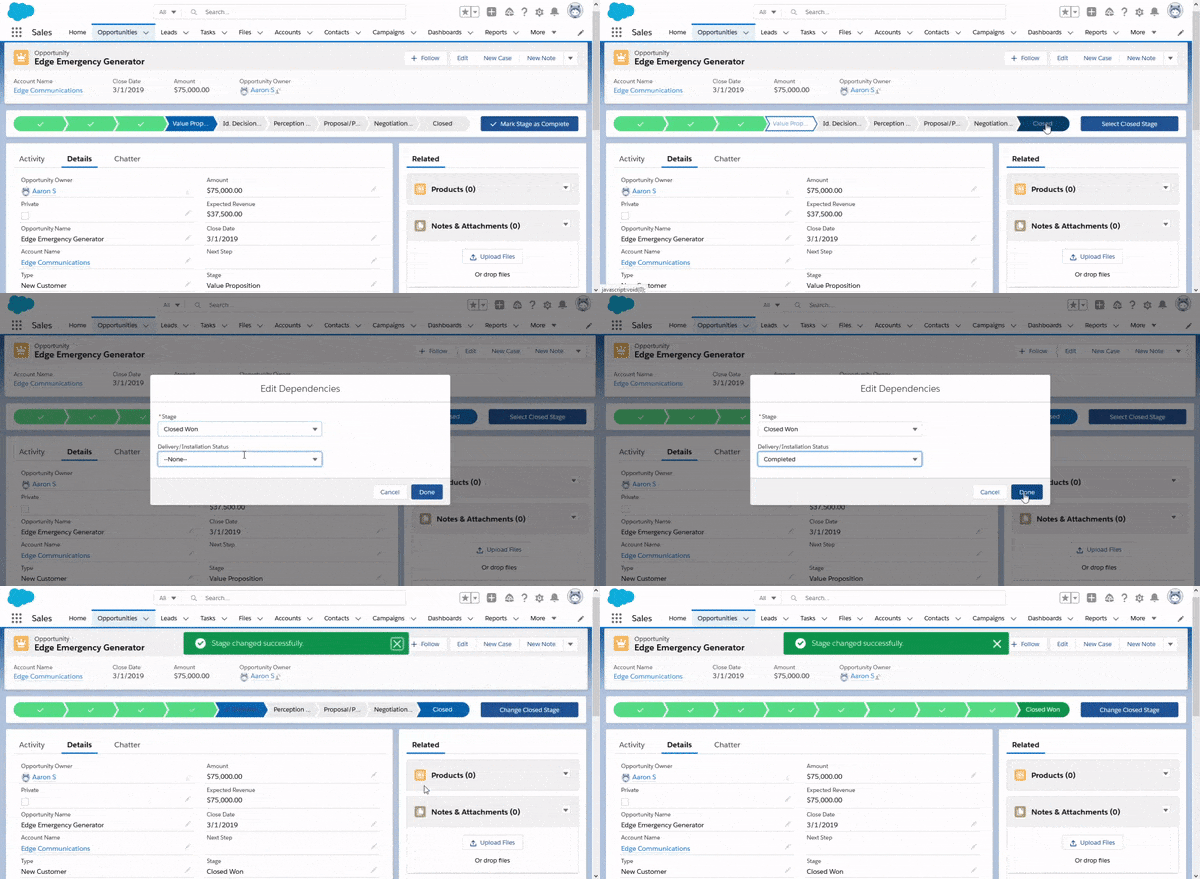
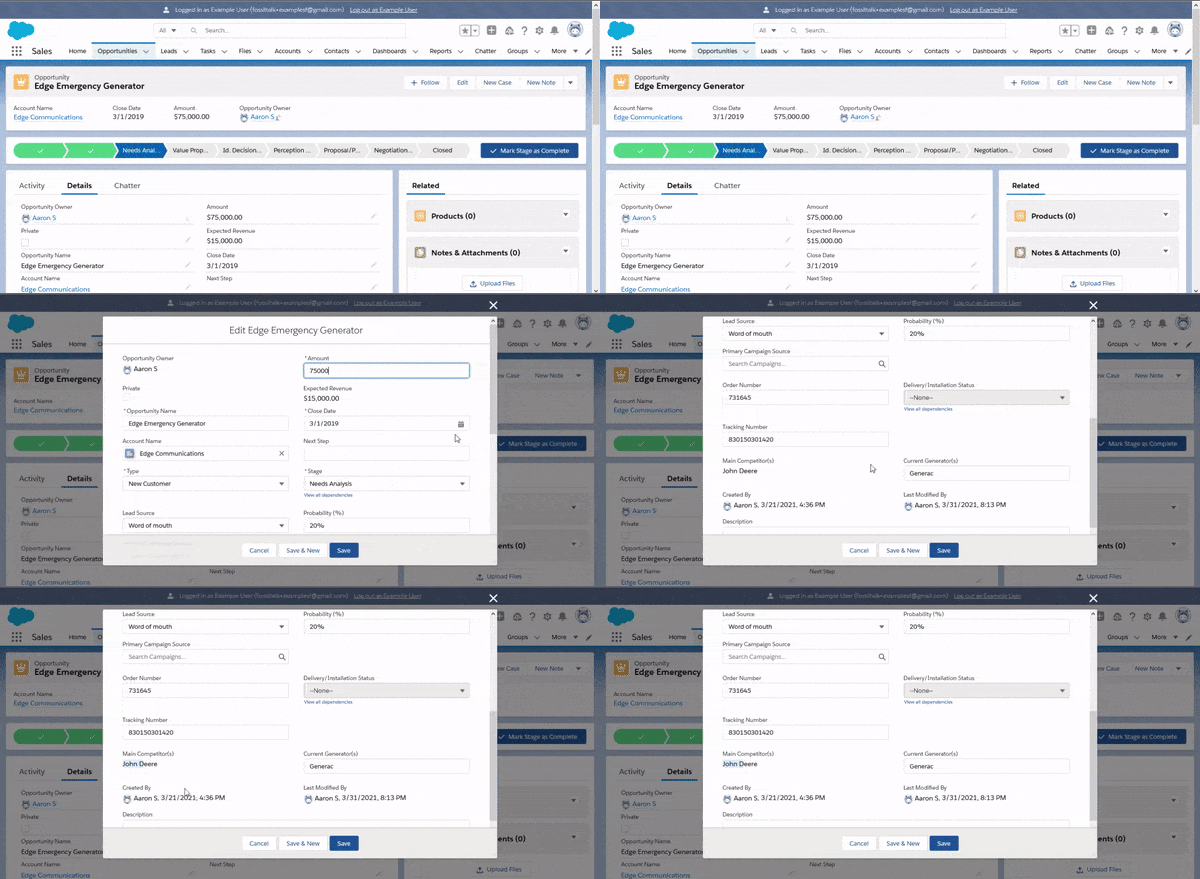
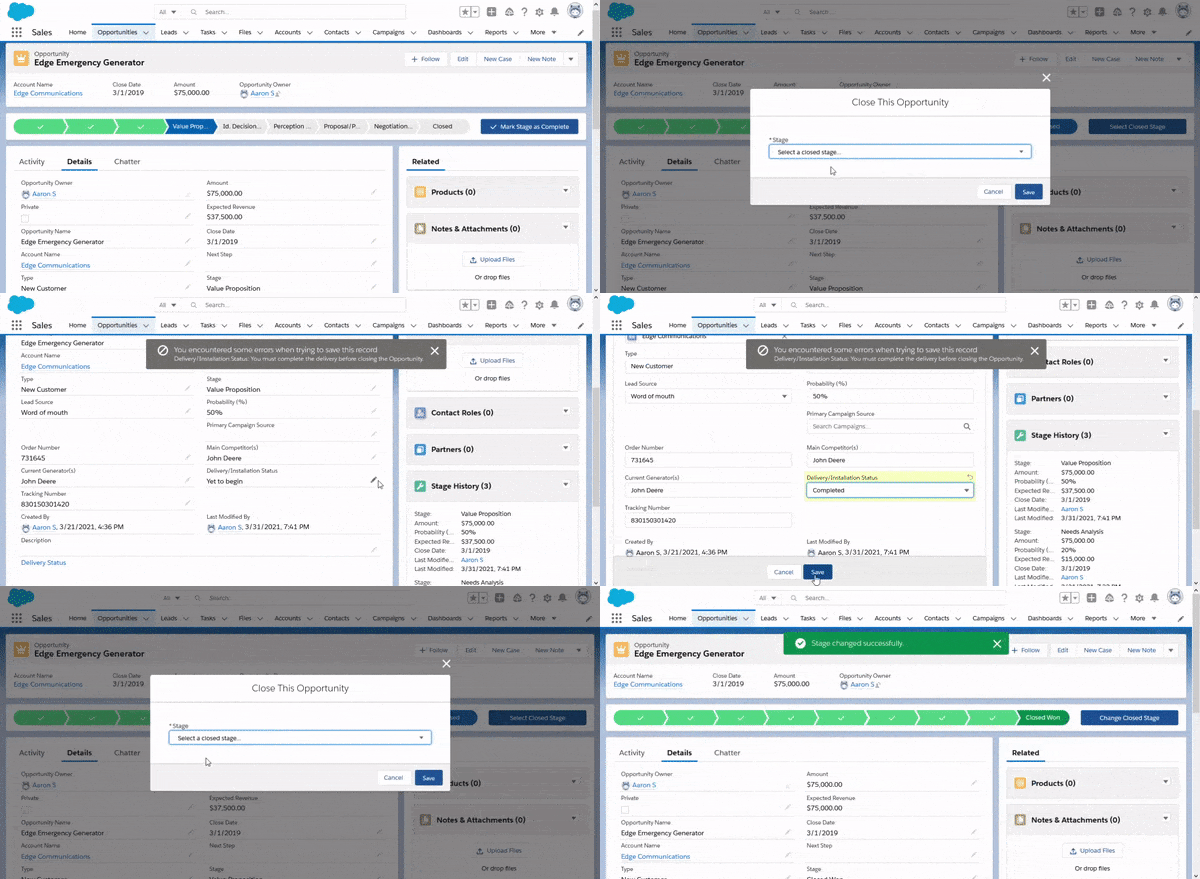
To show this off, here’s how we can require a Completed “Delivery/Installation Status” in order to close an Opportunity:

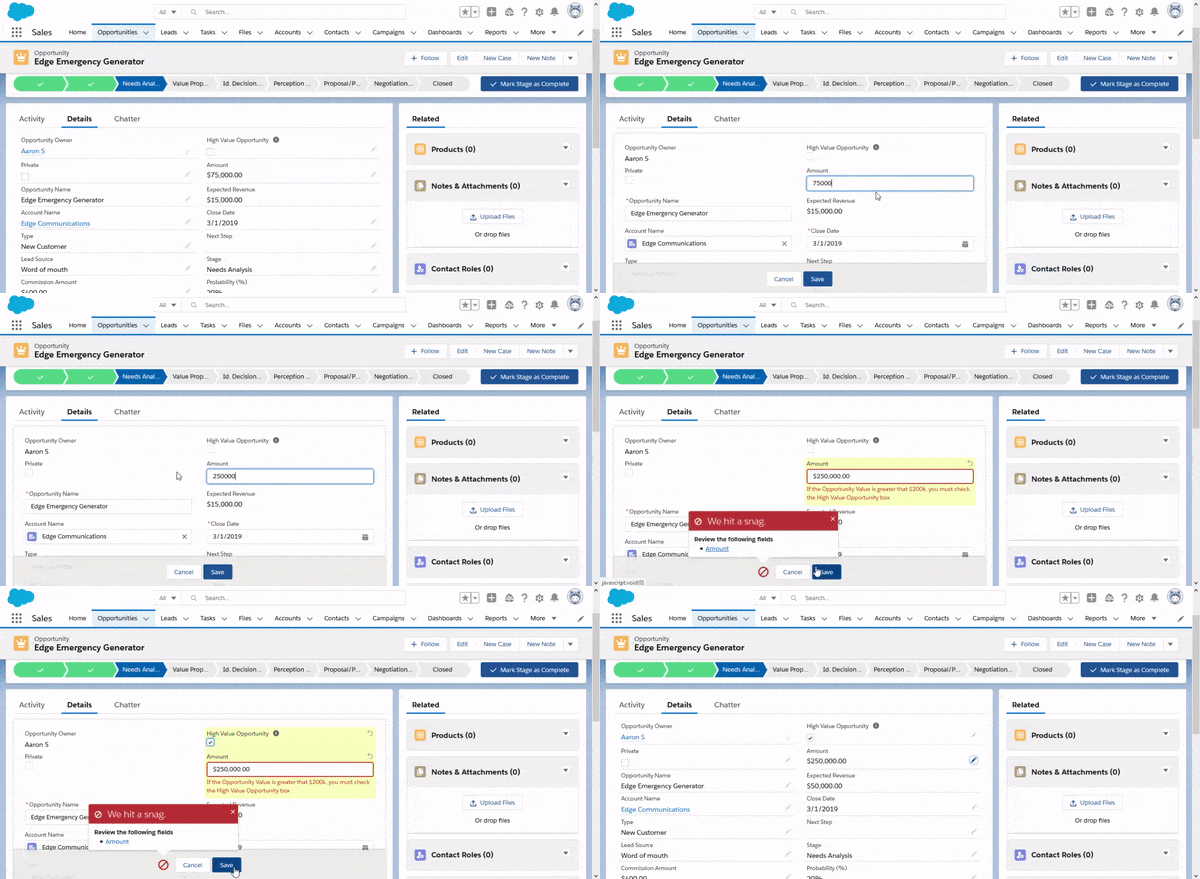
Validation Rule – Require Completed Delivery/Installation Status before Opportunity Close

The gif above shows what this behavior looks like when we use a validation rule. The user could save a little time by updating the stage in the record edit screen, but the validation rule still takes the user out of their groove.

Field Dependency – Require Completed Delivery/Installation Status before Opportunity Close

Here, we show that the Delivery Status field just becomes an additional field to enter if it’s not populated. If the user has already entered that value, they only need to confirm the value.

Record Types

This one kind of fits in with page layouts. For some reason there seems to be some opposition to creating record types. Not only does this give you a nice field to use for your field dependencies, but it also gives you a nice breakdown for things like page layouts.

Having multiple record types and likewise, page layouts helps you hide irrelevant fields from users for a given record type, resulting in less bad data, but it also allows you to conditionally automate data in places where it makes sense, and lock fields that users shouldn’t need to modify directly

Automation

Automation is an special because it helps prevent errors, not by validating data, but by using business rules to prevent users from having to enter the data at all. Strong business rules and automation allow you to take the users’ hands off the keyboards and utilize strict data types like numbers, picklists, and checkboxes to drive other field values, which may be subject to unnecessary user interpretation.

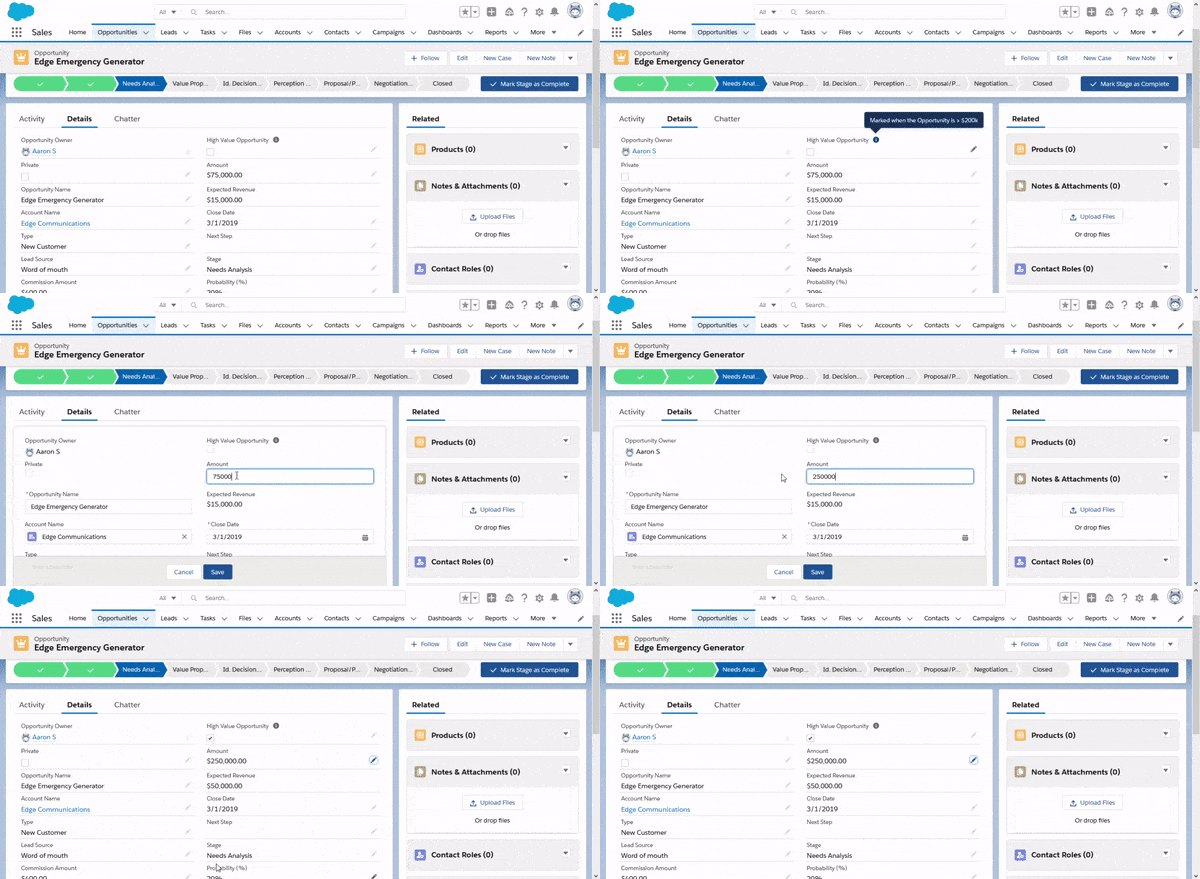
Using Validation Rules to Enforce Record Flags

It’s kind of unnecessary to leave this change up to a user, when we could just automate it.

Using Automation to… Well… Automate Data Entry

Help Text

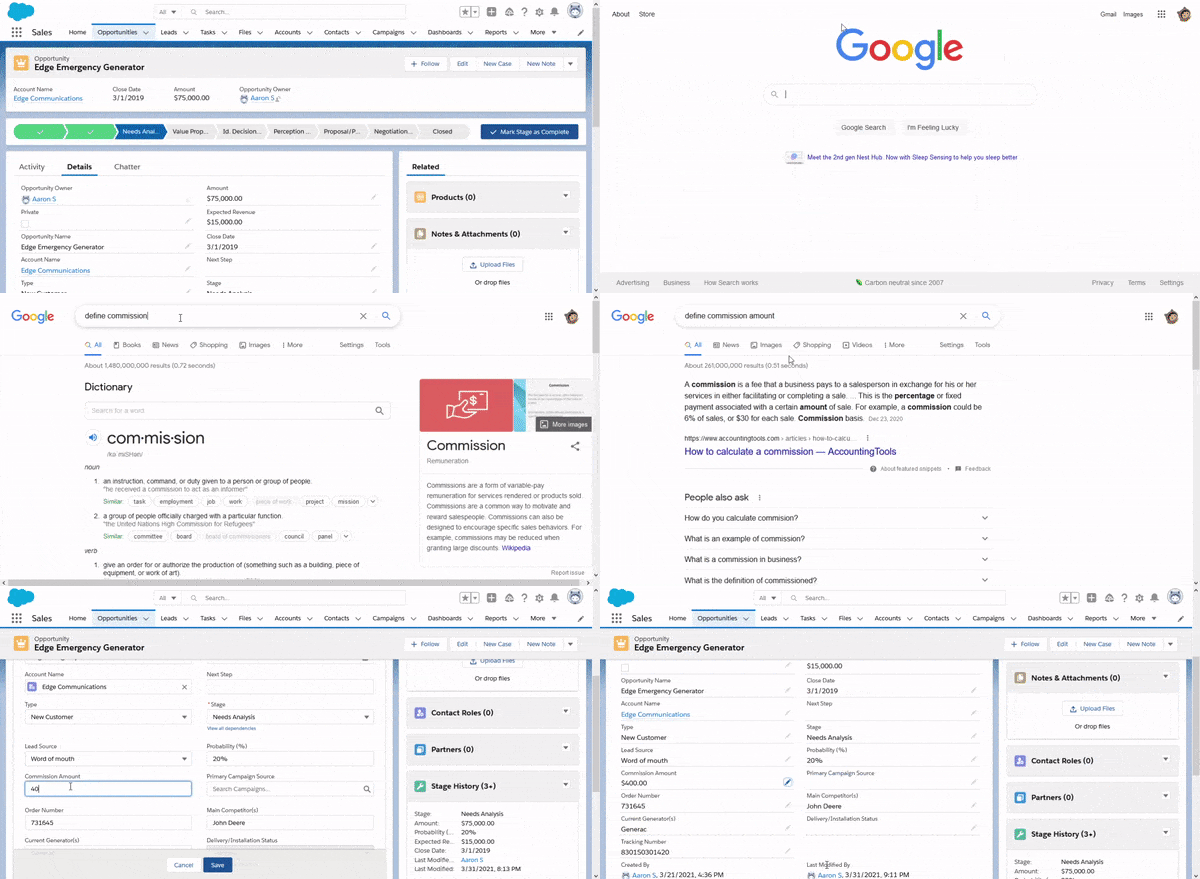
The last tool at your disposal is the Help Text. Help Text serves as your inline documentation. It helps a new user understand what they’re supposed to do with a field before they’ve entered their data. It also allows you to put helpful hits right in front of the user, so they don’t need to review documentation in an external system in order to understand how to commit the record.

Making Users Track Down Their Own Answers

Help Text doesn’t really stop the user from making mistakes, but it gives the user more information to help prevent issues, and to teach them what is expected.

Teaching Users Inline w/ Help Text

The Basics of Using Salesforce Data Loader

Overview

This document walks through the steps of performing updates and exports using the Salesforce Data Loader tool.  While dataloader.io can also be used for this purpose, that tool is subject to additional licensing and has limits to the number of records that can be exported or updated per run or in a given month.  The Salesforce Data Loader tool isn’t subject to these restrictions, and it runs on your local device and connects directly to Salesforce.  It also can utilize the bulk APIs to insert, update, export, upsert, etc.  very large quantities of records at a time.  Salesforce recommends the tool for batches of up to 5 million records at a time.

Data Loader Setup

  1. Follow the instructions in the link below to install Zulu Java OpenJDK/JRE and the Salesforce Data Loader program
    https://developer.salesforce.com/docs/atlas.en-us.dataLoader.meta/dataLoader/loader_install_general.htm
  2. Run the Salesforce Data Loader program.

Performing an Export

  1. Click Export
  1. You’ll be prompted to log in.  Select either Sandbox or Production, depending on what system you intend to log into.
  2. Enter your credentials to log in.
    • Note that in some orgs you may need to click Login with Custom Domain in order to get OAuth to work!
  3. You’ll be redirected to a page to choose the object you want export.  If you don’t see it in the list, check the box next to “Show All Salesforce Objects”, then select the object you want to export.
  1. At the bottom, click Browse… and choose a file name and location for the exported file.  Click Save
  1. You’ll see that the file name at the bottom has updated with the new file and path.  Click Next >
  2. On the next page, you will define the export.  You can either enter a SOQL query that you’ve tested in the dev console, or you can choose fields to display on the left, and then enter filtering conditions on the right (you may need to expand the window to see all fields).  When done, click Finish.
  1. You’ll be prompted to confirm that you want to export the records.  Click Yes.
  1. You’ll receive a progress indicator as it exports the data.
  1. When complete, you’ll be asked if you want to view the data.  You can just click OK or Close.
  2. You can now open the file to review in Excel or Numbers, or upload and open the file in Google Sheets.

Performing an Update

  1. From the Welcome Page, click the Update button.
  1. You may be prompted to log in. If so, see steps 2-6 in the export section.  For step 7, you’ll be redirected back to the page shown here in step 3
  2. Choose a Salesforce Object.  Note that you may need to click the box next to “Show all Salesforce objects”
  1. Click Browse…
  2. Choose the files that contains the records you want to update.  You’ll need at least an id field to identify the records and a column for the field you want to update.  Click Open
  1. The program will process the file to see how many records it is able to process, as well as scanning for issues like the wrong product selected and let you know how many records can be read properly.  If the number of records looks correct, click OK.
  1. You’ll be presented with a screen that looks like this.  If the File Column Headers do not look familiar, click < Back and upload the correct file.  If not, then click Create or Edit a Map.
  1. From here, you’ll be selecting which field in Salesforce corresponds with the column header in your csv file.  You can try Auto-Match Fields to Columns.  It works reasonably well.  Review its selections in the bottom-half of the window.  If any are incorrect or blank, you may have to update the map by dragging components from the top section.
  1. When happy with the mapping, you can click Save Mapping if this is a manual import you expect to perform frequently, or just click OK.
  2. The field mapping should be update now on the Mapping page.  If correct, click Next >.
  1. On this final page, you’ll be asked where you put the log files.  Click Browse… then create and/or select a directory where you want log files to be added.  There will be a success log and an error log for each run, indicating whether the run was successful for that record or not, and why.  After selecting a folder, click Finish.
  1. The program will increment through with whatever batch size you have configured, and provide an update every second or so of its progress on the update.  When complete, it will prompt you to review the log files.  You can do that for the errors, or just click OK.  You’re done!